

Family CTO: The New “Batteries Not Included”
The following is a fictional composite based on the real holiday experiences of many Family CTOs I have spoken with.
After some serious conversation on the Inspirational PowerPoint Mob’s IRC channel, Gra@nny aka “G-Mom” is ready to drop some serious cash on high tech gift for Jimmy (10) and Junior (5). Armed with great advice from her trusted cohort, G-Mom pulls the trigger on an aPutePlus tablet – just what the boys have been begging for.
Early one morning an unsuspecting Family CTO and his loving family are hip deep in wrapping paper. Jimmy grabs the package addressed “to the Boys, <3 G-Mom” and then… an eruption of delighted squeals! The boys demand access to the raw digital awesomeness immediately and unrelentingly.
Family CTO sits back and lets the boys have their unboxing moment. Suddenly, the mood shifts. This shiny slab that has the potential to enthrall is just that – a shiny slab with potential. The boys hit the power button, it lights up, makes some noise and the fun stops there.
Without an internet connection configured, an email address, a credit card to set up a FunStore account, and a cell phone to enable dual authentication the kids come to the sad realization that their dreams of digital awesomeness are completely in the hands of the Family CTO.
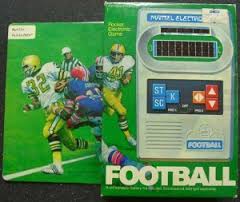
Thinking back to 1977, that Family CTO remembers getting a Mattel Electronic handheld football game from grandma. Parental involvement was simple – provide an endless stream of 9V batteries and occasionally threaten to “throw that thing out the window.” Pure, simple digital bliss.
Back in the moment, the Family CTO devises this far from perfect list of next steps to ensure everyone’s ongoing happiness:
- Get on the internet and learn all about the parental controls available for the device and applications. Keep in mind that various platforms afford varying levels of control. Decide if the controls are appropriate. This article gives some good cursory coverage.
- Call a family meeting and discuss the issues. Agree to a set of rules and consequences.
- This device supports multiple users. Each kid needs an email address. Set up monitored email accounts for each child. Microsoft Family Safety, Microsoft ID and Outlook.com work well here.
- Get on the new device and set yourself up as the administrator and enter the credit card that will be inevitably required.
- Create accounts for the kids and set up the parental controls. Install and configure the needed apps.
- Hand off the device knowing that, in most situations, your kids will have the ability to do far more than you can anticipate or control. Trust but verify.